MagiScan Studio
Connect your MagiScan account, browse your scans on desktop, and open models in slicers and other 3D apps.
What you need
- MagiScan Studio installed on your computer
- MagiScan app on your phone, signed in to the same account
- At least one 3D scan in your MagiScan library
Install and connect
Download and install MagiScan Studio
Download MagiScan Studio for your operating system and complete the installation.
Click Connect
Launch MagiScan Studio and click Connect. A QR code will appear on screen.
Scan the QR code in MagiScan
Open the MagiScan app on your phone and scan the QR code shown in Studio. After pairing, your models from the linked account will appear in the application.
Work with your models
Select a model
In the left panel, choose a model from My Models. The 3D preview will open in the main viewport.
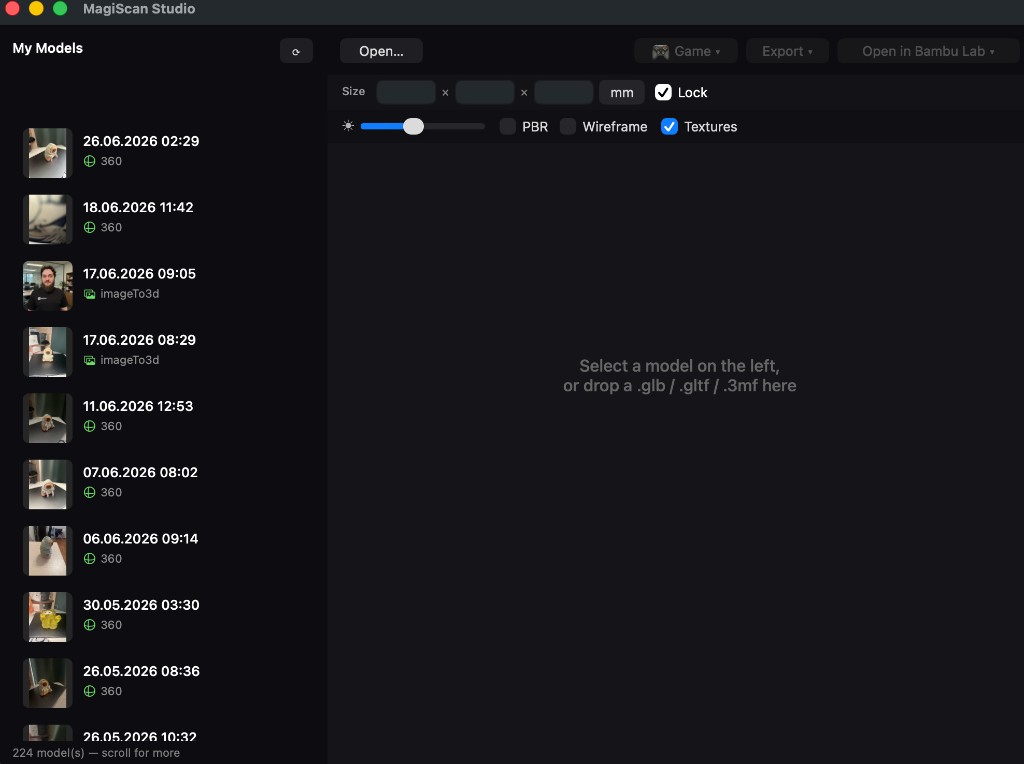
My Models list in MagiScan Studio.
Open in another app
Hover over Open in in the toolbar and select the app you want to use - for example Bambu Lab, OrcaSlicer, Cura, or PrusaSlicer.

Open in menu with supported slicer apps.
Continue in the selected app
The model opens in the app you chose. From there, you can prepare it for printing, adjust settings, or continue your workflow inside that application.
What's next?
Need new scans to import? See our scanning guide or 3D printing export guide. For game development, check the Unity plugin guide.