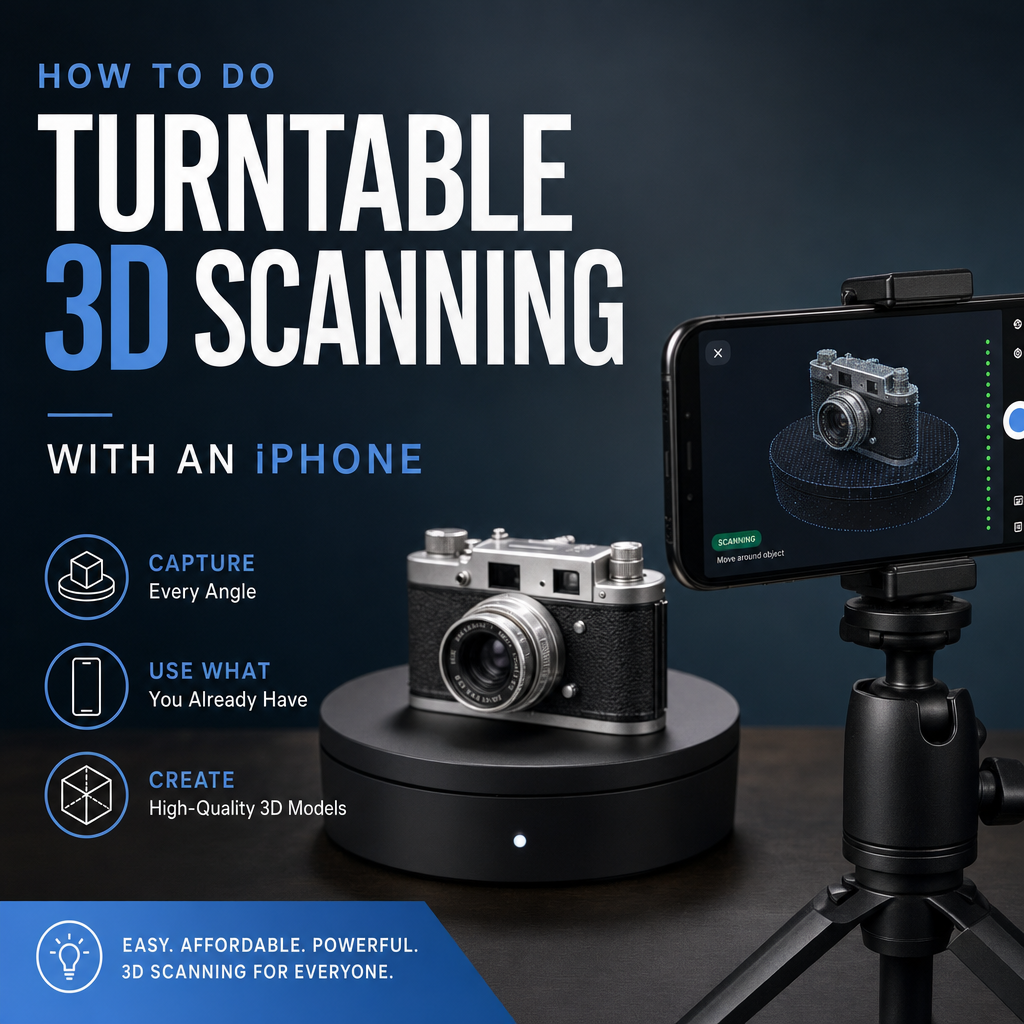
Turntable 3D scanning with an iPhone works by fixing the phone on a tripod, placing the object on a well-lit turntable against a plain background, and taking overlapping photos as you rotate the object in small steps at two or three camera heights. You then process those photos with a photogrammetry engine that supports a fixed-camera setup, such as Apple's PhotogrammetrySession on a Mac, because Apple's newer guided iPhone capture flow is built for walking around the object, not for turntables.
The rest of this page covers the kit, the lighting, the shooting pattern, the processing route and the mistakes that usually cost people a second session.
What equipment do you need for a turntable scan?
Less than most people expect. A working kit looks like this:
- An iPhone on a tripod or clamp. The camera must not move between shots. A Bluetooth shutter or a timer stops you nudging the phone every time you press the button.
- A turntable. A motorized product turntable is convenient, but a manual lazy Susan with degree marks drawn around the edge does the job.
- Something to hold the object still. In a peer-reviewed study of Apple's Object Capture, researchers secured objects with modeling clay and rotated the turntable manually in small increments to cover every angle. Clay, putty or a small stand keeps the object from creeping between frames, which is one of the quietest ways to ruin an alignment.
- Soft, even light. Two diffused lights or a light tent.
- A plain backdrop. A paper sweep, matte card or non-reflective fabric.
If your iPhone has LiDAR, use that model. Vuforia's documentation on Object Capture recommends an iPhone with LiDAR for accurate scale. Without it the shape still reconstructs, but you will need a known dimension to set the scale afterwards.
How should you light the turntable and set up the background?
Light first. Apple's WWDC22 session on Object Capture points out that if your capture room is dark, you can use a well-lit turntable to improve image quality for reconstruction. In practice that means diffuse light from two sides, no hard spotlight, and no window light that drifts as clouds move.
The reason diffuse light matters more on a turntable than in a walk-around scan: your lights stay fixed while the object turns. A hard highlight therefore slides across the surface from frame to frame, and the software can read that moving bright patch as a feature that does not exist. Soft light keeps the surface texture looking the same from every angle.
The background is the part people get wrong. Photogrammetry assumes the whole scene is rigid and the camera is moving. On a turntable the opposite is true: the object turns while the room stays still. If the backdrop has visible detail, such as a bookshelf, a patterned wall or a power socket, the solver sees two conflicting stories about how the camera moved. A featureless backdrop removes that conflict, so the only trackable detail left is on the object and the turntable, which rotate together.
That creates one trade-off. A few marks on the turntable surface give the solver extra reference points and can help alignment on plain objects, but they also make the turntable more likely to end up in your mesh. If the object itself has plenty of texture, keep the turntable plain.
How do you take the photos?
- Frame and lock. Fill most of the frame with the object, leaving a small margin. Tap and hold in the Camera app to lock focus and exposure so brightness does not shift between shots.
- Shoot the first ring. Set the camera slightly below or level with the middle of the object. Take a photo, rotate the turntable a small step, take the next. Vuforia recommends at least 100 images with 70% or greater overlap between neighbouring shots. As an example, 15-degree steps give 24 photos per full turn.
- Raise the camera for a second and third ring. One ring at mid height and one looking down from above. Three rings at 15-degree steps comes to 72 photos.
- Flip the object for the underside. Turn it over, re-secure it and shoot another set. Including this pass usually takes you past the 100-image mark and fills the hole that would otherwise sit where the object touched the turntable.
- Check before you pack up. Scroll through the photos for blur, missed steps or a moved object. Reshooting one ring now beats discovering the gap after processing.
If you want to tune the count for more or less detail, our guide on how many photos you need for a good photogrammetry scan covers the reasoning behind overlap and coverage.
Which app or method should process turntable photos?
This is where many people stall. Apple offers two ways in. The newer guided Object Capture experience on iOS walks you around the object with on-screen prompts. According to a reply on Apple's developer forums that cites Apple's own guidance, that guided session is not designed for turntable use, and fixed-camera or turntable setups should keep using the original PhotogrammetrySession method.
So the dependable Apple route is: shoot the photos on the iPhone, transfer them to a Mac, and process them with a tool built on PhotogrammetrySession. The photos you took on a turntable are just images, so you are not locked into one capture app.
A turntable is not always the right choice, though. Here is how it compares with moving the phone around a stationary object:
| Turntable, fixed camera | Walk-around, moving camera | |
|---|---|---|
| Best for | Small to mid-size objects you can lift and rotate | Large, heavy or fixed objects |
| Lighting control | High, lights stay put relative to the camera | Lower, you cast shadows as you move |
| Background | Must be plain, or the solver gets confused | Detail in the scene can help tracking |
| Underside | Needs a flip and a second pass | Often unreachable without lifting |
| Processing on Apple | PhotogrammetrySession on a Mac | Guided Object Capture on iPhone or Mac processing |
| Typical failure | Object shifts, turntable baked into mesh | Gaps from rushed or uneven coverage |
When the object is too large to rotate, or you need measurements and an export for 3D printing, AR or an online store straight from the phone, a scanning app such as MagiScan covers capture, measurement and export on both iPhone and Android, which saves the round trip to a Mac.
Why does the turntable end up in my model, and what else goes wrong?
The turntable is baked into the mesh. A bug report referenced on Apple's developer forums describes a regression where Object Capture failed to exclude the turntable from the generated .usdz files. Even when the software behaves, a textured turntable top can get reconstructed as part of the object. Keep the turntable plain, raise the object on a small, narrow stand if you can, and plan to crop the base away afterwards. Our guide on fixing holes and cleaning up a 3D scan walks through trimming and patching.
The object moved mid-capture. Usually it tipped slightly on a manual turntable. The result is a doubled edge or a smeared section. Secure it properly and rotate gently.
Exposure flicker. If you did not lock exposure, the phone brightens and darkens as darker sides face the lens. Texture seams follow.
Using the guided iOS flow with a turntable. As covered above, that flow expects the camera to move. Use photos plus PhotogrammetrySession instead.
Shiny, black or clear objects. These fail on any setup because the surface either reflects the room or shows no texture. A turntable helps with consistent lighting but does not solve the underlying problem; see how to 3D scan shiny, black or transparent objects for preparation methods.
How accurate is a turntable scan from an iPhone?
With a careful setup, accurate enough for a lot of real work. The PLOS ONE study mentioned earlier validated its turntable-captured Object Capture models against physical caliper measurements and found an average width discrepancy of 1.48 mm. That was with secured objects and small, deliberate rotation steps, so treat it as what a disciplined capture can reach, not a guarantee for a rushed one.
Scale is the other half of accuracy. Photogrammetry alone reconstructs shape but not absolute size; LiDAR depth or a reference of known length fixes that. Whatever route you take, measure one feature of the real object with calipers and compare it with the same feature in the model before you trust the rest.
What should you do next?
Start with one matte, textured object about the size of a coffee mug. Shoot three rings plus a flipped pass, process with PhotogrammetrySession, crop the base and check one dimension with calipers. Once that works, move to harder materials and larger pieces. When you need the finished file in a specific format, our guide on exporting a 3D scan to STL, OBJ or USDZ explains which to pick. For objects that cannot go on a turntable, or when you want scanning, measuring and export in one phone app, MagiScan is a practical place to continue.
Frequently Asked Questions
Can I use Apple's guided Object Capture on iPhone with a turntable?
According to a reply on Apple's developer forums citing Apple's guidance, the guided session is not designed for turntable use. For fixed-camera setups, shoot photos and process them with the original PhotogrammetrySession method instead.
How many photos do I need for a turntable scan?
Vuforia's Object Capture documentation recommends at least 100 images with 70% or more overlap between neighbouring shots. Three height rings in small rotation steps plus a flipped pass for the underside usually gets you there.
How do I scan the bottom of an object on a turntable?
Turn the object over, secure it again with clay or putty, and shoot another set of rings. Processing both sets together fills the gap where the object rested on the turntable.
Do I need an iPhone with LiDAR for turntable scanning?
No, photogrammetry reconstructs shape from ordinary photos. LiDAR helps with accurate scale, and without it you should include or measure a known dimension so the model can be scaled correctly.