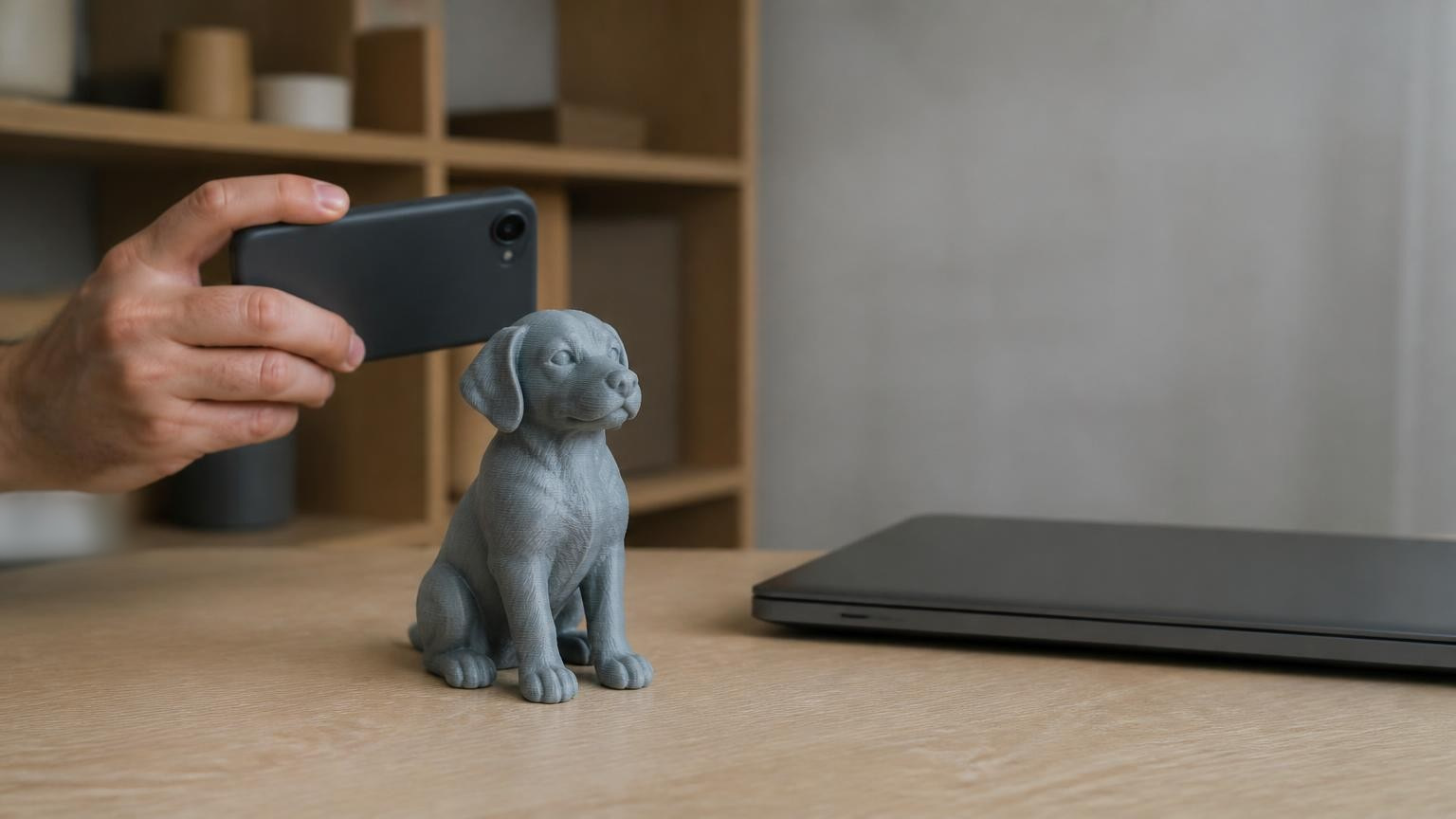
Clean up the scan, set its real size, then choose the format by where the file is going: STL for a 3D printer, OBJ (with its .mtl file and texture images) for editing in a program like Blender, and USDZ for viewing the object in AR on an iPhone or iPad. The export itself is one choice in the app's export or share menu; what decides whether it works is the preparation before it and the files you keep together after it.
Pick the wrong format and the color disappears, the model arrives the size of a grain of rice, or a client cannot open what you sent. Below: what each format holds, how to export it, and the mistakes behind most failed exports.
Which format should you export: STL, OBJ or USDZ?
Start from the destination: the same scan can be exported three times for three jobs.
STL describes a surface as a mesh of triangles and nothing else: the Library of Congress format description (updated 27 February 2025) notes that STL was first documented by 3D Systems in 1988 and that there is no standard support within STL for colors or textures. For printers and slicers that is enough: they only need the shape.
OBJ carries more. The Blender manual's OBJ page describes it as a popular plain text format with only basic geometry and material support. It can hold UV coordinates and normals, and the materials go into a separate .mtl file written next to the .obj. The texture photos stay as separate image files that the .mtl points to.
USDZ packs everything into one file. When you export a USDZ from Blender, the Blender manual's USD page says the result is a zip archive containing the USD and its texture file dependencies. One file is easy to email, upload or link from a product page.
| Format | What survives the export | Where it usually goes | What to watch |
|---|---|---|---|
| STL | Triangle surface only, no standard color or texture | Slicers for 3D printing, CAD import | Scale and units; all color is lost |
| OBJ | Geometry, UVs, normals; materials in a .mtl; textures as image files | Blender and other 3D editors, game engines | Losing the .mtl or images when moving files |
| USDZ | Geometry, materials and textures in one package | AR Quick Look on iPhone, iPad and Apple Vision Pro | Android viewers expect glTF/GLB instead |
A short rule: printing means STL, editing or retexturing means OBJ, showing the object in AR on Apple devices means USDZ.
What should you fix before you export?
Most export problems are scan problems that the export only makes visible. Five checks before you press Export:
- Crop what is not the object. Floor, turntable, table edge and floating fragments all get exported as geometry. Remove them first.
- Close the holes if you will print. A slicer needs a closed, watertight surface to work out what is inside the part. Gaps under the base or in deep recesses are the usual culprits; our guide on how to fix holes and clean up a 3D scan walks through it.
- Set the real size. A scan from photos alone has no idea how big the object is unless the app measured it or you give it a reference. Check one known dimension before export, as described in how to scale a 3D scan to real-world size.
- Put the base flat and the front forward. Fixing orientation once in the scanning app is easier than fixing it in every program that opens the file.
- Match the detail to the job. A print benefits from fine geometry; an AR preview on a phone does not, and a heavy file loads slowly. Reduce polygons or texture size for AR and web use.
How do you export a 3D scan to STL for 3D printing?
- Open the finished scan and choose STL in the export or share menu. In a phone app this is usually the share sheet; in desktop software it is under File, Export.
- If the exporter asks, pick binary rather than ASCII. The Library of Congress page notes that binary STL files are more common because they are more compact; ASCII writes the same triangles as readable text and produces a larger file.
- Set the scale or unit option if there is one, so that one unit in the file means one millimetre in the slicer.
- Open the STL in your slicer and measure a dimension you know. If the part is 25.4 times too small, the file was written in inches and read as millimetres; 10 times too small points to centimetres, and 1,000 times too small to metres. Rescale in the slicer or, better, re-export with the right unit.
- Let the slicer check the mesh. If it reports open edges or errors, go back to the cleanup step rather than printing anyway.
The scan's color does not go into an STL; if you need the colored model too, export an OBJ or USDZ alongside it.
If you capture with a phone, MagiScan is an iPhone and Android app that turns the phone into a 3D scanner and exports scans for 3D printing, AR and e-commerce, so the print file can come from the same app that made the scan. Our guide on how to scan an object for 3D printing with a phone covers the capture side.
How do you export to OBJ without losing the textures?
Textures get lost here because an OBJ is not one file. A textured scan exports as at least three: the .obj with the geometry, the .mtl with the materials, and one or more image files with the texture.
- Export into an empty folder, so you can see every file the exporter wrote.
- Make sure the material file is written. In Blender's exporter this is the Materials option, which writes the MTL file along with the OBJ; the Blender manual notes that most importers that support OBJ will also read the MTL file.
- Control the texture paths. Absolute paths may only be correct on the computer that wrote the file. Blender's Path Mode set to Copy copies each texture on export and references it with a relative path, so the folder works wherever it is moved.
- Keep UV coordinates switched on, or the texture will not wrap around the model correctly.
- Check the axes. Blender uses Y forward and Z up, and the manual notes it is common for other applications to use Y as up, in which case you export with -Z forward and Y up. A model that opens lying on its back usually needs only this change.
- Send the whole folder as one zip, never the .obj alone.
Two smaller options matter for some targets. Blender can write vertex colors in an "xyzrgb" extension of the OBJ format, so check that the receiving program reads it before relying on it. And the Triangulated Mesh option exists because, as the manual puts it, some programs only have very basic OBJ support and only support triangles.
How do you export to USDZ for AR on iPhone and iPad?
USDZ is the format for putting the object in front of someone in AR without asking them to install anything. Apple's Quick Look gallery says built-in apps such as Safari, Messages, Mail, News and Notes use Quick Look to display USDZ files in 3D on iPhone, iPad and Apple Vision Pro, on devices running iOS 12 or iPadOS 12 or later, or visionOS 1 or later. A USDZ file on a product page or in a message opens in Quick Look on those devices, and one tap on the AR icon places it in the room.
- Export the textured scan as USDZ from the scanning app if it offers it. In Blender, use the USD exporter and set the file extension to .usdz; the Blender 5.2 manual says this produces a zip archive containing the USD and its textures.
- Keep the file light. Blender's USDZ Texture Downsampling option caps exported textures at sizes from 256 to 4096 pixels. A smaller cap means a smaller file, which matters when the file goes over email or loads on a phone.
- Bake tiled textures first. The same manual notes that UDIM textures cannot be included in a USDZ archive because of a current limitation in the USD library, so a model textured that way needs a single texture before export.
- Test it on a real iPhone or iPad before you send it: open it from Messages or Mail, place it in AR and check the size against the real object.
USDZ covers Apple devices. For Android, Google's Scene Viewer documentation (last updated 31 October 2024) lists glTF 2.0/glb as its format and needs Android 7.0 or later on an ARCore-supported device. If your buyers or clients use both kinds of phone, export a GLB next to the USDZ. Our article on how to share a 3D scan with a client covers the sending side.
What goes wrong most often, and how do you fix it?
- The model is tiny or huge in the slicer. A unit mismatch. Measure one known dimension, rescale by 25.4, 10 or 1,000, and set the unit correctly on the next export.
- The OBJ opens gray. The .mtl file or the texture images did not travel with the .obj, or the .mtl points to absolute paths on another computer. Re-export with relative or copied paths and send the whole folder.
- The model lies on its side or back. An axis convention mismatch. Change the forward and up axes on export instead of rotating it by hand in every program.
- The USDZ will not open on an Android phone. Android's Scene Viewer uses glTF/GLB; export that format for those users.
- The slicer reports errors or the print fails inside. Holes or loose fragments in the mesh. Fix the scan, then export again.
- The file is too big to send. Reduce polygons and texture size for the AR copy and keep the full-detail version for printing.
Which export should you choose for your job?
For e-commerce product pages and remote sales, export USDZ for iPhone and iPad visitors and GLB for Android, both from the same cleaned, correctly scaled scan. For printing parts, replacements or prototypes, export binary STL and check the size in the slicer. For anything that will be edited further, retextured or combined with other models, export OBJ with its .mtl and textures, or keep a USDZ if the next program reads it.
Many jobs need two exports: an STL to print and a USDZ to show the client what will be printed. Whatever app made the scan, the order is the same: cleanup, real size, orientation, then the format. MagiScan covers the scan and the export on the phone; the destination still decides the format.
Frequently Asked Questions
Can I convert an STL to OBJ and get the colors back?
No. STL has no standard support for colors or textures, so a standard STL carries no color for a converter to recover. Go back to the original textured scan and export an OBJ or USDZ from it.
Why does my OBJ look gray when I open it in Blender?
The .mtl file or the texture images are missing, or the .mtl points to file paths that only existed on the computer that exported it. Re-export into an empty folder with paths set to relative or copy, and keep the .obj, .mtl and images together.
Does USDZ work on Android phones?
USDZ is the format Apple's Quick Look displays on iPhone, iPad and Apple Vision Pro. Google's Scene Viewer on Android uses glTF 2.0/GLB, so export a GLB as well when Android users need to view the model in AR.
Should I export binary or ASCII STL?
Binary, in almost every case. It holds the same triangles in a more compact file and is the more common variant, while ASCII is mainly useful when you need to read or debug the file as text.